
Overview
This procedure describes how to find and resolve accessibility issues that may be present within Word documents. All web content, including Word documents uploaded to websites, must be accessible to all users, including users with disabilities.
Before remediating a document, consider whether it still needs to be hosted on your website. It may be easier to remove old documents, and the links to those documents, than it would be to complete the remediation process.
Procedure
- Open the document to be remediated using Microsoft Word.
- Click the Review menu:

- On the Review ribbon, select Check Accessibility (see #1 below), then select the Check Accessibility dropdown menu item (see #2 below):

- Review the suggestions in the Accessibility Assistant sidebar to the right:

- Items with a blue check (see #1 above) have passed the accessibility check and do not need to be addressed.
- Items with a number (see #2 above) represent accessibility issues that need to be addressed. Click on each item with a number and follow the suggestions to resolve the issue.
- To fix the issue Missing alt text, follow these steps:
- If the image is relevant to the content of the document, enter a short, accurate description in the text area labelled "Enter image description" (see #1 below).
- If the image is strictly decorative and does not relate to the content of the document, click the Mark as decorative link (see #2 below).

- Tip: for improved accessibility, enter a "ScreenTip" for each link in the document as follows:
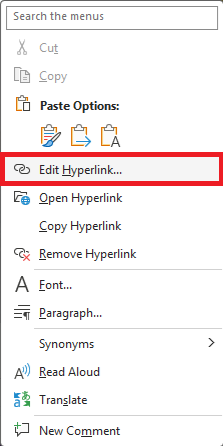
- Right-click on the link
- Select "Edit Hyperlink" from the pop-up menu
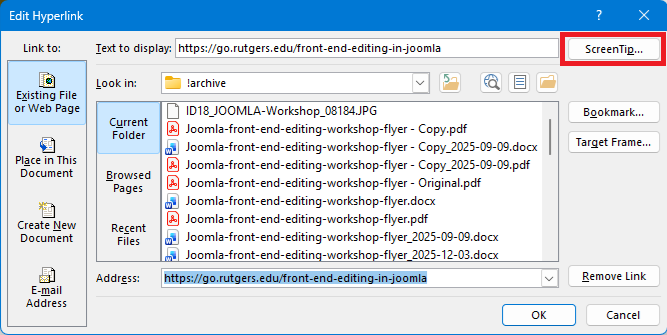
- Click the ScreenTip... button to the upper right
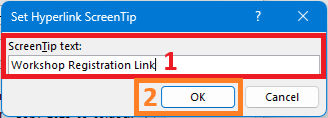
- For "ScreenTip text," enter a description of the link (see #1 below)
- Click OK to close the "Set Hyperlink ScreenTip" popup window (see #2 below)
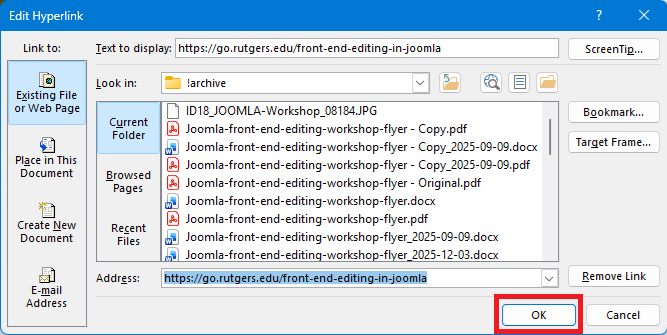
- Click OK to close the "Edit Hyperlink" popup window.
- After all issues have been resolved, save the Word document.
- Upload the Word document to the same location on the website where the original document was located, so that the new document replaces the old one. If you are unsure how to upload the new document, follow the steps for Uploading a file using JCE File Browser.